

How It Works
- Issue Triggered - Either automatically detected from Sentry/database monitoring, or manually assigned via Linear issues
- Generates Solution - Analyzes your codebase and creates appropriate fixes
- Creates PR - Submits with clear descriptions and context
- You Review - Standard GitHub workflow with Feedback Loop
What Triggers Tembo PRs
Automatic Detection
- Sentry errors and application crashes
- Database performance issues like slow queries or missing indexes
- Code quality problems detected through analysis
Manual Assignment
Direct Requests
Create tasks directly through the Tembo dashboard for specific improvements.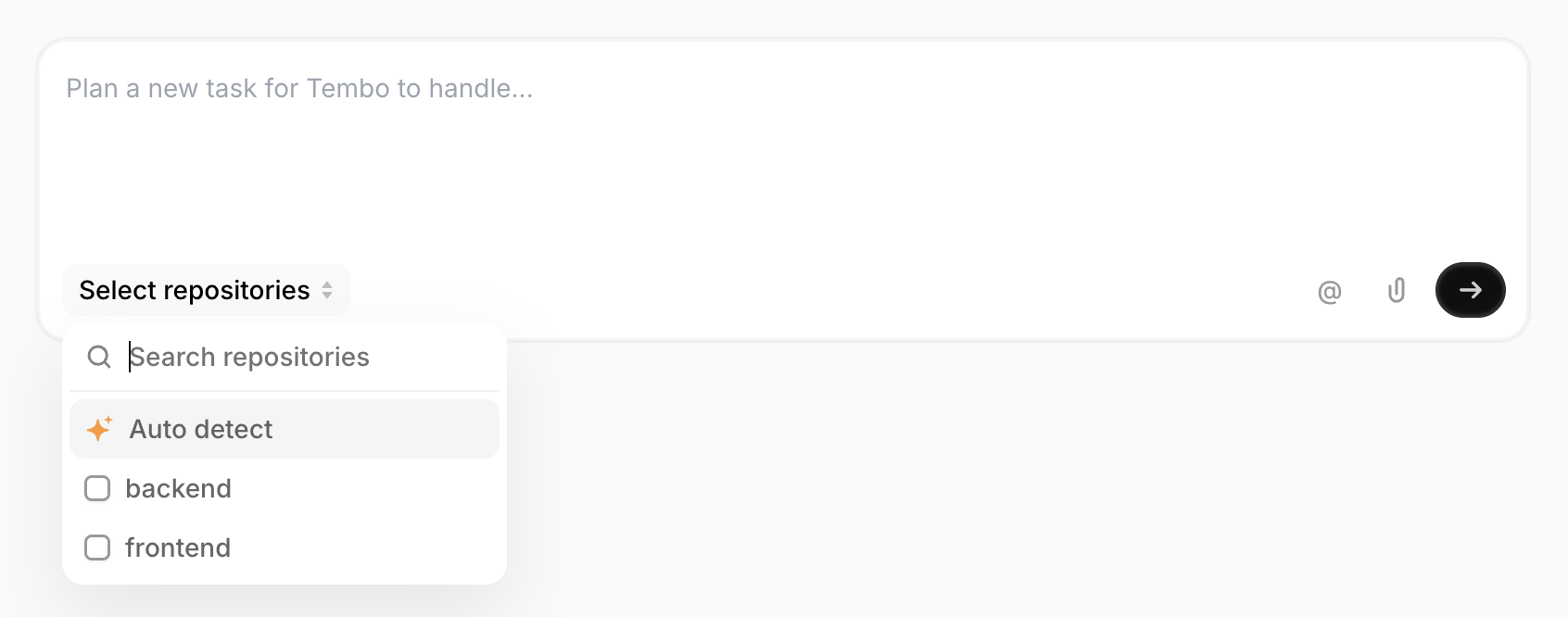
- Single repository: Select a specific repository from the dropdown, or use Auto detect to have Tembo automatically identify the most appropriate repository for your task using AI
- Multiple repositories: Select multiple repositories from the dropdown when your task spans across different codebases (e.g., frontend and backend changes)
Linear Issues
Assign Linear issues to Tembo for interactive repository selection.- Assign the issue - Assign the Linear issue directly to Tembo
- Select repository - Tembo will prompt you with a dropdown menu to select which repository to work on
- Multiple repositories - Type multiple repository names when prompted to work across several repositories simultaneously
- Default repository - Optionally configure a default repository in Tembo settings to streamline the selection process
Jira Issues
Assign Jira issues to Tembo with appropriate labels or assignments. Note: Repository detection and multi-repository tasks are not yet supported for Jira integration. Tembo will use your default repository setting.Github Issues
Mention Tembo with some request in a Github issue and Tembo will start working on it.Tembo’s Pull Requests
Tembo’s pull requests are created with the following characteristics:- Clear descriptions of the problem and solution approach
- Focused changes that follow your coding standards through Rule Files
- Context links to original errors, issues, or performance metrics
- Tests when appropriate for the change type
AI-Generated Commit Messages
Tembo automatically generates meaningful commit messages for all changes it makes. Each commit message:- Summarizes the changes in a concise, descriptive format
- Reflects the context from the original issue or task
- Follows best practices for commit message structure
- Incorporates feedback when you request changes through the Feedback Loop
Signed Commits
For GitHub integrations, Tembo automatically signs all commits using the GitHub App. This results in “Verified” badges on your commits, providing assurance that the code was generated by Tembo’s authenticated integration.PR Template Support
When creating a pull request, Tembo reads your repository’s PR template and uses it to structure the PR description according to your preferred format. If no template is found, Tembo generates a standard PR description. Tembo checks for PR templates in the following locations:/.github/pull_request_template.mdor/.github/PULL_REQUEST_TEMPLATE.md/docs/pull_request_template.mdor/docs/PULL_REQUEST_TEMPLATE.md/pull_request_template.mdor/PULL_REQUEST_TEMPLATE.md(root directory)
Troubleshooting
Pull Request Not Created
If Tembo isn’t creating pull requests for your tasks:- Verify repository activation - Ensure the repository is active in your Tembo dashboard under Integrations
- Check branch permissions - Confirm Tembo has permission to create branches in your repository
- Review integration status - Navigate to the Integrations page to verify your Git provider integration is connected
- Check for existing PRs - Tembo may skip creating duplicate PRs for the same issue
PR Description Missing Context
If pull request descriptions lack sufficient detail:- Improve task descriptions - Provide clear, detailed task descriptions with context about the problem and expected solution
- Add PR templates - Create a PR template in your repository to guide Tembo’s PR descriptions
- Use rule files - Add a rule file with PR guidelines and formatting preferences
Commits Not Signed (GitHub)
If commits appear without the “Verified” badge:- Reinstall the GitHub App - Disconnect and reconnect the GitHub integration from the Integrations page
- Check repository permissions - Ensure the Tembo GitHub App has write access to the repository
- Verify organization settings - Some organizations require additional approval for GitHub App installations
You maintain complete control - Tembo provides solutions, you decide what gets merged.